
Overview
In this guide, we’re going to show you how to set up your Team’s webhook to receive trade signals. This guide assumes that you have already created your own strategies in platforms such as TradingView, and are ready to share those signals with your team members on Trading Blitz. A webhook is a secure URL that automatically sends your buy and sell signals from your trading platform directly to your team’s Trades tab, where they’ll appear instantly with automatic tracking of open and closed positions and calculated returns for each trade.
Table of Contents
What is a Trade Signal Webhook?
Getting Started
Finding Your Webhook URL
Connect Your Trading Platform
Option 1: TradingView (Most Popular)
Option 2: Manual Entry
Option 3: Other Trading Platforms
Understanding Signal Logic
Opening Positions
Closing Positions
Viewing Your Signals
Security & Limits
Testing Your Webhook
Troubleshooting
Best Practices
What is a Trade Signal Webhook?
Let’s start out by defining a webhook. This is a special URL that allows your trading platform (e.g. TradingView) to automatically send trade signals to your team’s page on Trading Blitz. When your strategy generates a buy or sell signal, it will instantly appear in your team’s Trades tab for all members to see.
Think of it like this: Your trading platform “calls” your webhook URL whenever you have a new trade signal, and Trading Blitz receives that “call” and displays it to your team.
*** IMPORTANT – Your webhook URL contains an authentication token. This security feature protects your team’s signals. Do not share your webhook with anyone. Otherwise, they will be able to publish signals to your team’s Trade page.
Getting Started
Step 1: Find Your Webhook URL
- Go to your team page
- Click on the “Trades” tab
- Look for the button at the top that says “Create Webhook”
- Click to create your unique webhook URL with authentication code
- The button should now read “Copy Webhook”
- Click the button to copy your webhook URL
⚠️ Important Security Note:
- Your webhook URL is secret and unique to your team
- Don’t share it publicly or with people outside your team
- Anyone with this URL can send signals to your team
- If you believe it’s been compromised, contact an administrator to reset it
Connect Your Trading Platform
Option 1: TradingView (Most Popular)
Since TradingView is the most common platform for automated trading signals, we will use it in our example below. For purposes of this guide, we are assuming that you have already created your own Strategies in TradingView. Here’s how to set up your webhook in TradingView:
A. Add Your Strategy Alert:
- In TradingView, open a chart that contains your strategy
- Click the “Alert” button (clock icon), or press ctrl-A.
- Select your strategy in the Condition dropdown
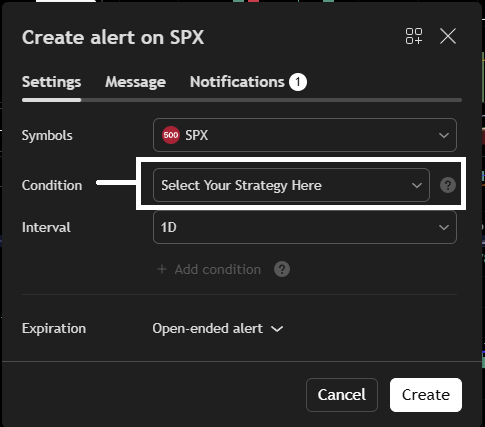
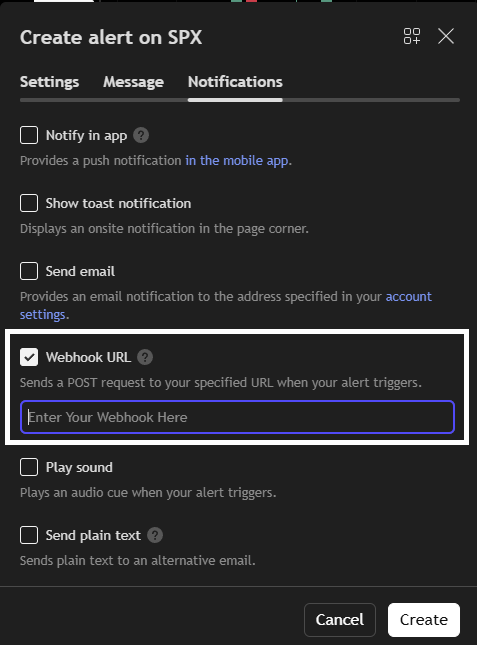
- Click “Notifications” tab (top), check “Webhook URL”
- Paste your webhook URL from Trading Blitz
B. Configure the Alert Message:
Click on the “Message” tab and paste this JSON code in the Message textarea field:

Replace “My Strategy Name” with your actual strategy name (e.g., “Pullback”, “Breakout”, “RSI Reversal”). This helps you track different strategies separately.
What these codes mean:
{{strategy.market_position}}→ TradingView fills this with “long” or “short”{{ticker}}→ TradingView fills this with the stock symbol (e.g., “AAPL”){{close}}→ TradingView fills this with the current price{{strategy.order.comment}}→ TradingView fills this with “Buy” or “Sell”
IMPORTANT – In your TradingView Strategy Pine script, you must include comments with your entry and exit signals (i.e. “Buy” or “Sell”)
if buy_conditions
            strategy.entry("Trade", strategy.long,comment="Buy" )

        if sell_conditions
            strategy.close(id="Trade",comment="Sell")
Option 2: Manual Entry
If you prefer to enter signals manually or your platform doesn’t support webhooks, you can use tools like Postman or cURL to send signals:
Simple Python Script Example:
import requests

webhook_url = "YOUR_WEBHOOK_URL_HERE"
signal = {
    "action": "BUY",
    "position": "LONG",
    "symbol": "AAPL",
    "price": 150.25,
    "strategy": "My Manual Strategy"
}

response = requests.post(webhook_url, json=signal)
print(response.json())
Option 3: Other Trading Platforms
Many platforms support webhooks with slightly different formats. Your webhook accepts these field variations:
Alternative Field Names:
- Position:
position,side,direction,type - Action:
action,comment,signal - Symbol:
symbol,ticker - Price:
price,close - Strategy:
strategy,name
Example from another platform:
{
  "side": "BUY",
  "direction": "LONG",
  "ticker": "TSLA",
  "close": 245.80,
  "name": "Momentum Strategy"
}
Understanding Signal Logic
Opening Positions
Long Entry (buying to go long):
- Position: LONG
- Action: BUY
Short Entry (selling to go short):
- Position: SHORT
- Action: SELL
Closing Positions
Closing a Long Position:
- Position: LONG
- Action: SELL
Closing a Short Position:
- Position: SHORT
- Action: BUY
Important Notes:
- FIFO Matching: Trades are closed “first in, first out” – the oldest open position for that symbol is closed first
- Full Closes Only: Partial position closes are not currently supported
- Automatic Calculation: Returns are calculated automatically when positions close
- Long return: (Exit Price – Entry Price) / Entry Price × 100
- Short return: (Entry Price – Exit Price) / Entry Price × 100
Viewing Your Signals
Trades Tab Layout
Your team’s Trades tab shows two sections:
1. Open Positions (Active trades)
- Shows all currently open long and short positions
- Displays: Strategy name, Symbol, Position type, Entry date/price
2. Closed Positions (Completed trades)
- Shows all trades that have been closed
- Displays: Strategy name, Symbol, Position type, Entry/Exit dates and prices, Return %
Organizing Multiple Strategies
Use the strategy field to organize different trading approaches:
- “Pullback Strategy”
- “Breakout System”
- “RSI Reversal”
- “Moving Average Cross”
This allows you and your team to see which strategies are performing best.
Security & Limits
Daily Signal Limits
Depending on your account level, you may have a daily limit on the number of signals you can receive:
- Check your current limit: Look for a notice at the top of the Trades tab
- Unlimited option available: If you hit your limit, you can upgrade to unlimited signals (link appears when applicable)
Webhook Status
Your webhook can be disabled by administrators if there are issues. If your webhook stops working:
- Check that signals are being sent correctly from your platform
- Verify your webhook URL hasn’t changed
- Contact an administrator if the issue persists
Testing Your Webhook
Before going live, test that your webhook is working:
Simple Test Using Your Browser:
You can’t test directly in a browser, but you can use a tool like Postman (free download):
- Download Postman
- Create a new POST request
- Paste your webhook URL
- Set Body type to “JSON”
- Paste this test signal:
json
{
  "action": "BUY",
  "position": "LONG",
  "symbol": "TEST",
  "price": 100.00,
  "strategy": "Test Strategy"
}- Click “Send”
- Check your Trades tab – you should see the test signal appear!
Success Response:
json
{
  "success": true,
  "message": "Signal processed successfully",
  "signal_id": 123
}
Error Response:
json
{
  "success": false,
  "error": "Invalid position. Must be LONG, SHORT, or FLAT"
}
Troubleshooting
Common Issues
1. Signals Not Appearing
- ✓ Verify webhook URL is correct
- ✓ Check that webhook is enabled (not disabled by admin)
- ✓ Confirm you haven’t hit daily limit
- ✓ Ensure JSON format is correct
2. Wrong Return Calculations
- ✓ Make sure close signals match open signals (same symbol and position)
- ✓ Verify position types are consistent (LONG/SHORT)
3. Duplicate Signals
- ✓ Check that you’re not sending the same signal twice
- ✓ Review your platform’s alert settings
4. Missing Fields Error
- ✓ Ensure all required fields are included: action, position, symbol, price
- ✓ Check for typos in field names
Best Practices
- Use Clear Strategy Names – Makes it easy to track performance
- Test Before Going Live – Always test with a sample signal first
- Keep Webhook Secret – Treat it like a password
- Monitor Your Limits – Check daily signal usage regularly
- Use HTTPS Only – Your webhook URL uses secure HTTPS encryption
- Document Your Setup – Keep notes on your platform configuration
Need Help?
If you encounter issues or have questions:
- Review this guide carefully
- Test with simple sample signals
- Check the troubleshooting section
- Contact site administrators via the support page
Remember: Most issues come from incorrect JSON formatting or mismatched signal pairs (opening without closing, or vice versa).
Quick Reference Card
Required Fields
actionorcomment: “BUY” or “SELL”position,side, ordirection: “LONG” or “SHORT”symbolorticker: Stock symbolpriceorclose: Current price
Optional Fields
strategyorname: Your strategy name (recommended)
TradingView Template
json
{
  "position": "{{strategy.market_position}}",
  "symbol": "{{ticker}}",
  "price": "{{close}}",
  "comment": "{{strategy.order.comment}}",
  "strategy": "Your Strategy Name"
}